

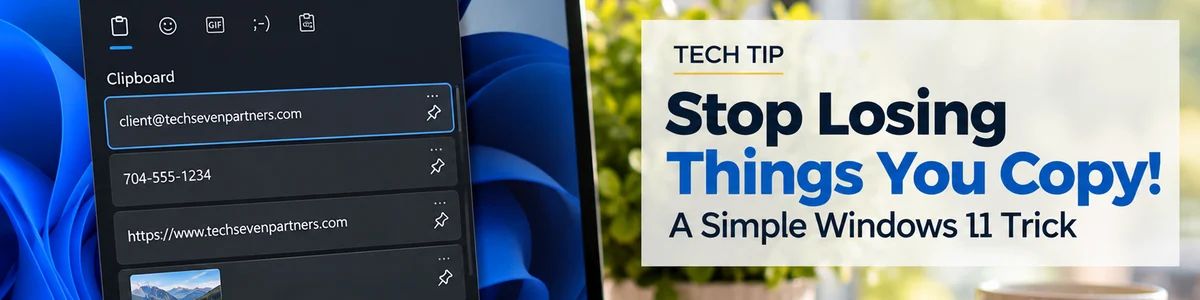
Did you know Windows can remember more than just the last thing you copied? We’ve all done it. You copy a phone number, email address, or important piece of text, only to accidentally copy something else before pasting it. Now the original information is gone, and you’re searching for it all over again.
Fortunately, Windows 11 has a built-in feature called Clipboard History that can save you time and frustration.
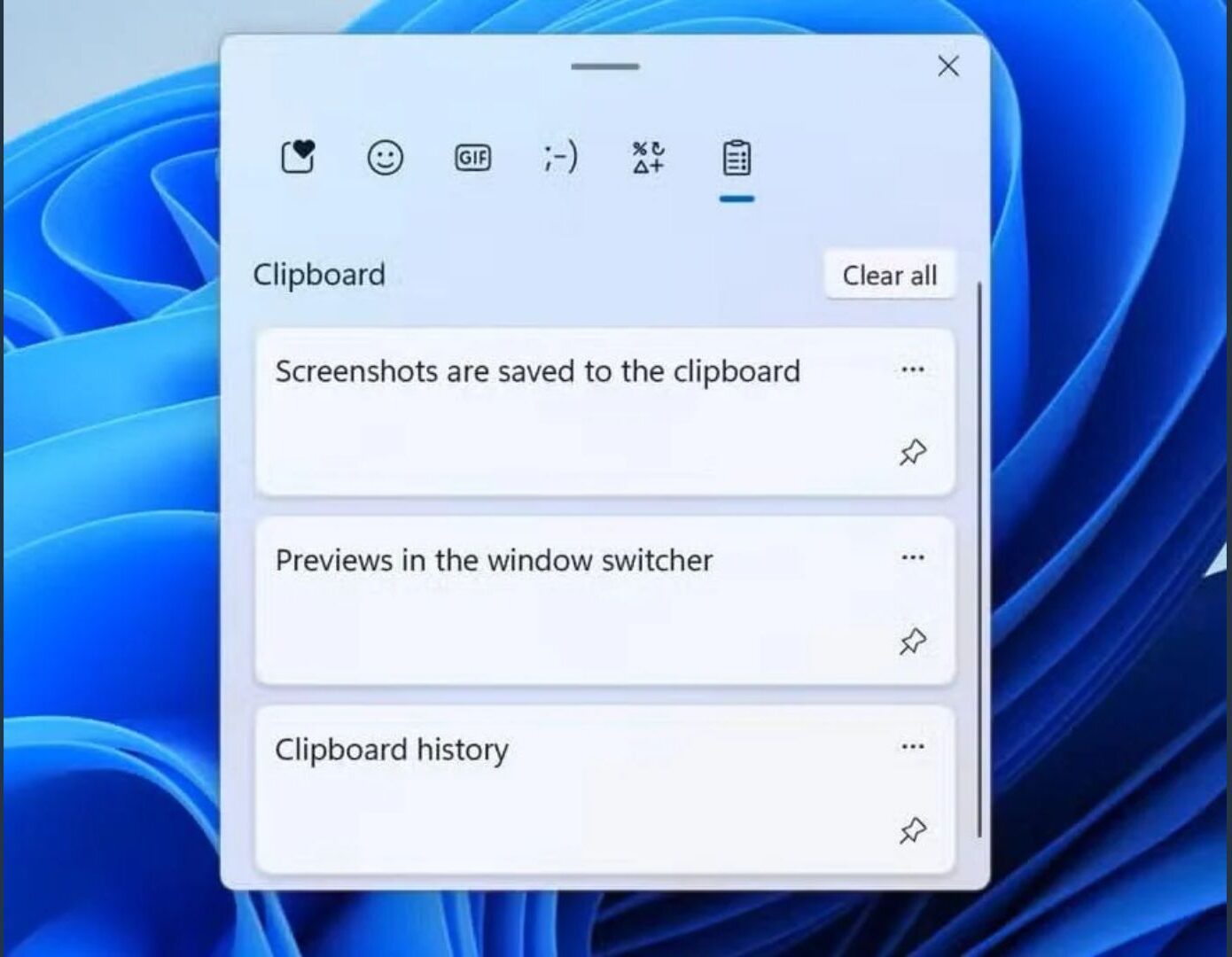
How to Use Clipboard History in Windows 11
- Open Clipboard History. Press Windows Key + V. The Windows key typically displays a four-square Windows logo, but some keyboards label it Start or Start/Opt.
- Turn it on. If this is your first time using the feature, click Turn on when prompted.
- Copy a few items. Highlight some text and press Ctrl + C. Repeat with two or three different pieces of text.
- View your history. Press Windows Key + V again. You’ll see a list of items copied since enabling the feature.
- Choose what you need. Click an item to paste it into your active document, email, or other text field.
Don’t see the same screen? The Clipboard History panel may look slightly different depending on your Windows version and settings. You can check whether the feature is enabled under Settings → System → Clipboard → Clipboard history.
Bonus Tip: Pin Your Favorites
Have an address, message, or piece of information you use frequently?
Open Clipboard History, find the item, and click the pin icon. Pinned items remain available even after restarting your computer or clearing your clipboard history.
A Few Things to Know
- Clipboard History stores up to 25 supported items.
- It only remembers items copied after you’ve enabled the feature.
- Unpinned items are cleared when you restart your computer.
- Avoid storing passwords, financial information, or other sensitive data in Clipboard History.
Small Trick, Big Time Saver
Sometimes the most useful technology isn’t a new app or expensive tool. It’s simply knowing how to get more out of the technology you already use.
Try Windows Key + V today. You might wonder how you managed without it!